

















Help and setup, and theme integration
The Help and setup screen is a short checklist to go live, and a reference for fitting the block into a theme that is not Classic or Hummingbird.
The three steps to go live
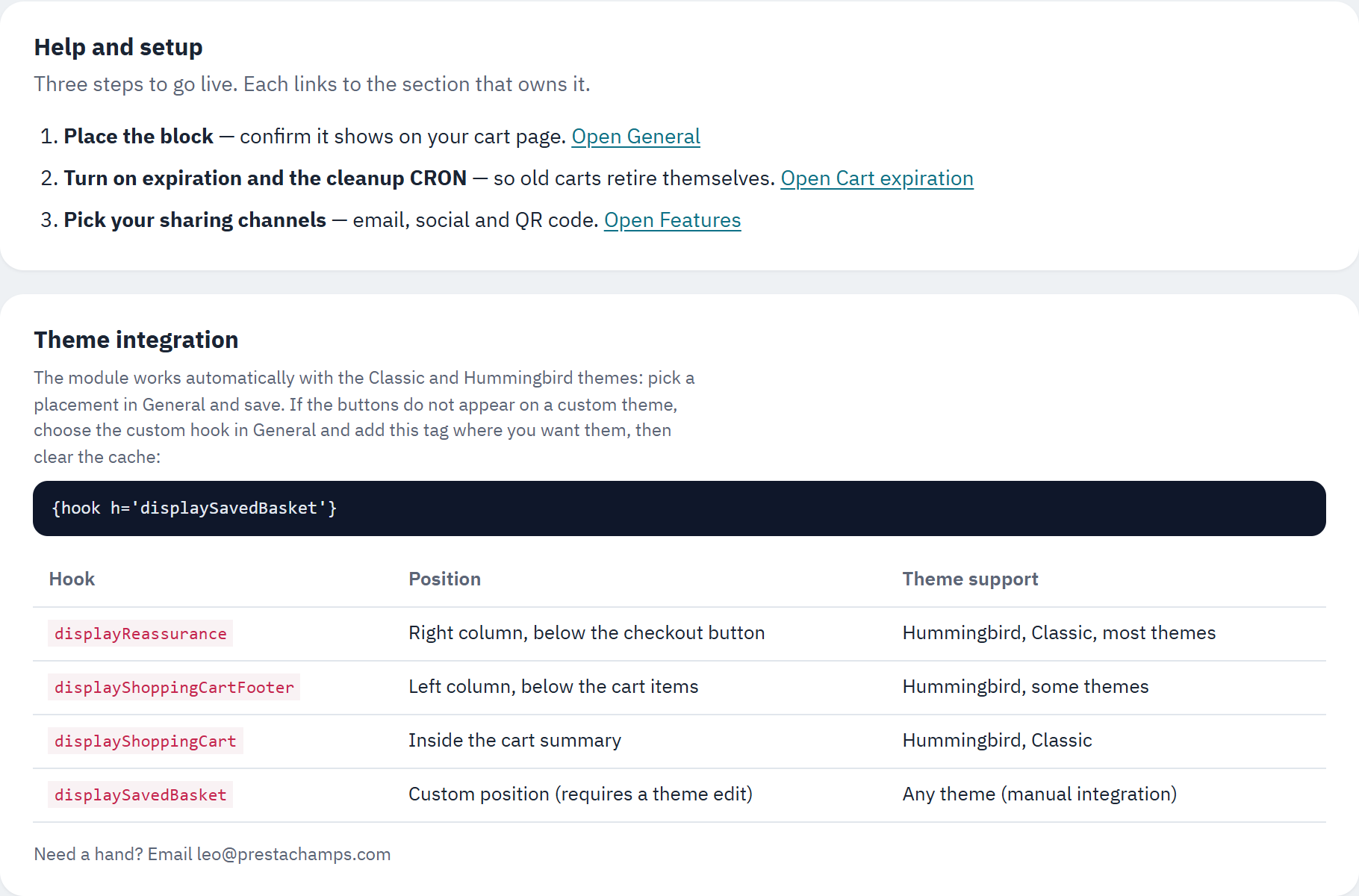
- The three steps, each with a link to the screen that owns it.
- The tag to add for a custom theme.
- The table of hooks and where each one places the block.
The three steps are: place the block and confirm it shows on your cart (Placement on the cart), turn on expiration and the cleanup job so old baskets retire themselves (Cart expiration and the cleanup job), and pick your sharing channels (Features: notifications, social sharing and QR code). Each step links to the screen that owns it.
Theme integration
Saved Basket works automatically with the Classic and Hummingbird themes: choose a placement under General and save. If the buttons do not appear on a custom theme, choose the custom hook under General › Placement on the cart, then add this tag in your cart template where you want the block, and clear the cache:
{hook h='displaySavedBasket'}
The screen lists the hooks the block can use and where each one places it:
| Hook | Position | Theme support |
|---|---|---|
displayReassurance | Right column, below the checkout button | Hummingbird, Classic, most themes |
displayShoppingCartFooter | Left column, below the cart items | Hummingbird, some themes |
displayShoppingCart | Inside the cart summary | Hummingbird, Classic |
displaySavedBasket | Custom position (requires a theme edit) | Any theme (manual integration) |
Multistore
Saved Basket supports PrestaShop's multistore. Each shop keeps its own settings and its own saved baskets, and a basket saved on one shop cannot add its products to a basket on another.
Settings per shop
Open the settings in the shop or shop group you want to change, using the shop selector at the top of the back office. When you save, the settings apply to that context. A notice at the top of the screen reminds you which shops your changes will affect:
- In a single shop context, your changes apply to that shop.
- In a shop group context, they become the defaults for every shop in the group that has no value of its own.
- In the all shops context, they are the defaults for every shop that has no value of its own.
Baskets stay with their shop
A saved basket belongs to the shop it was saved on. When a shopper opens a code or a link, only the matching shop's basket is brought back, so one shop's products are never mixed into another shop's basket. The dashboard and statistics are shown for the shop you are viewing.