
















General settings
The General screen controls where the block appears on the cart, who gets a hidden copy of each share email, the look of the buttons and the popup, and how a retrieved basket joins the current one.
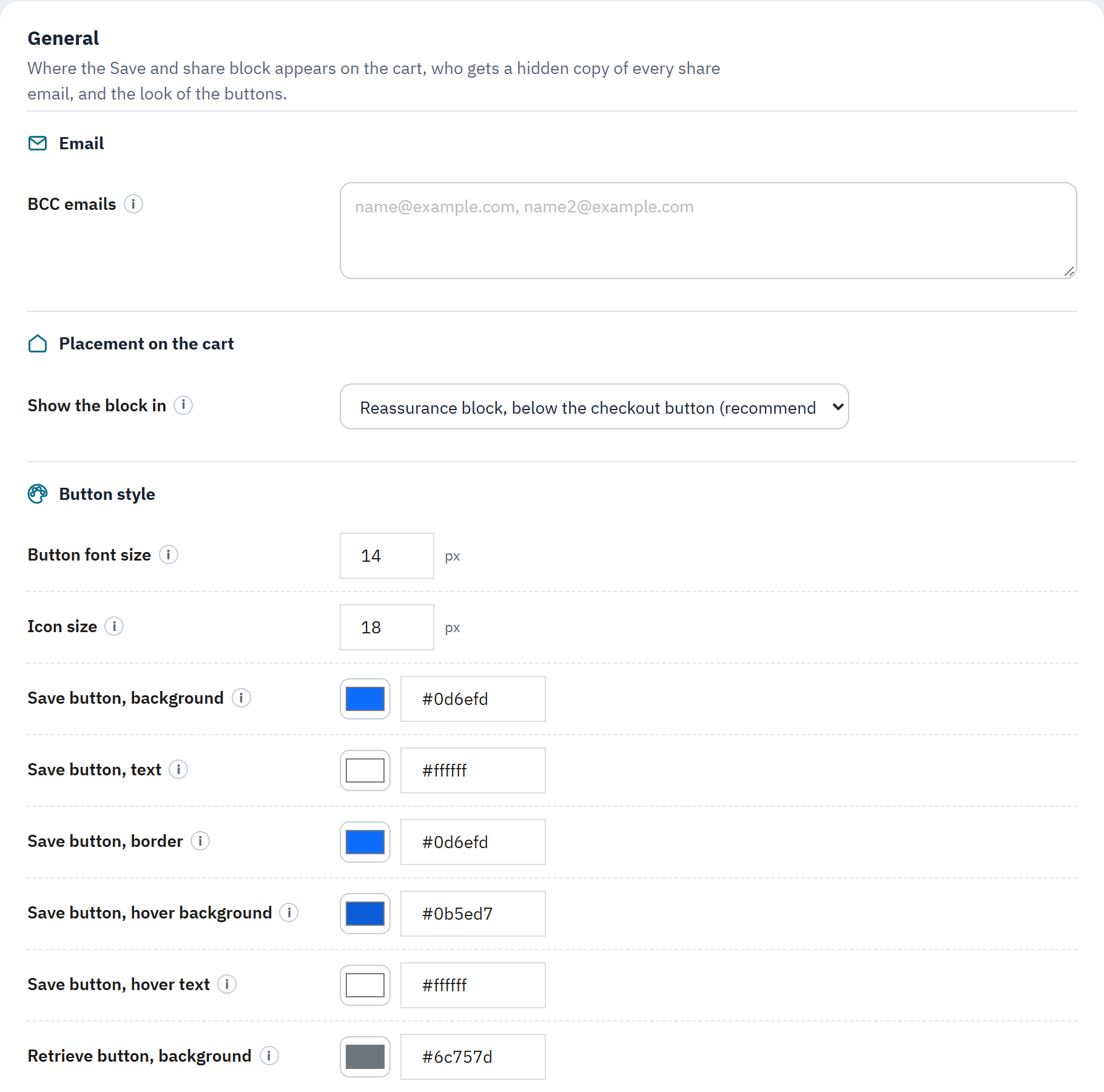
- BCC emails: addresses that get a silent copy of every share email.
- Show the block in: which cart hook renders the Save and Retrieve block.
- The small (i) button next to a setting opens a short explanation of it.
- The button colours: each one has a colour picker and a hex value.
BCC emails is a comma-separated list of addresses that silently receive a copy of every cart-share email, which is handy for a sales inbox. Leave it empty for none. The default is empty (A hidden copy for your team).
Placement on the cart
Show the block in chooses which cart hook renders the Save and Retrieve block:
| Reassurance block, below the checkout button (recommended) | The default. Fits the Classic and Hummingbird themes. |
|---|---|
| Left column, below the cart items | Places the block under the list of items. |
| Right column, inside the cart summary | Places the block inside the order summary. |
| Custom hook, for custom themes (displaySavedBasket) | Lets you position the block yourself (Theme integration). |
Button style
This group sets the look of the two buttons: Button font size and Icon size in pixels, and the background, text and border colours of the Save button and the Retrieve button, each with a normal and a hover colour. The Share accent colour is the colour of the copy-link button and the share menu. Every colour has a picker and a hex field.
Popup appearance
Popup header style changes how the top of the save and retrieve popup looks: Gradient (two colours) blends the two colours below, Solid colour uses only the first, and Light / minimal makes the header white with a coloured top accent. The two colours are Popup header colour and Popup header colour, gradient end. The default is the gradient.
Retrieving a basket
When a shopper opens a saved basket decides what happens to their current basket: Let the shopper choose, Add to the current basket or Replace the current basket. The default is to let the shopper choose (Keep or replace).
Shared-basket page
Show a landing page when a link is opened, when on, shows a branded page with the saved items and an Add to my basket button, instead of adding the items and jumping straight to the cart. The default is on (By link: the shared-basket page).
Click Save at the bottom of the screen to keep your changes.
Features: notifications, social sharing and QR code
The Features screen turns the extra touches on and off: the small toast that confirms a save or a retrieve, the social-share channels, and the QR code in the share email.
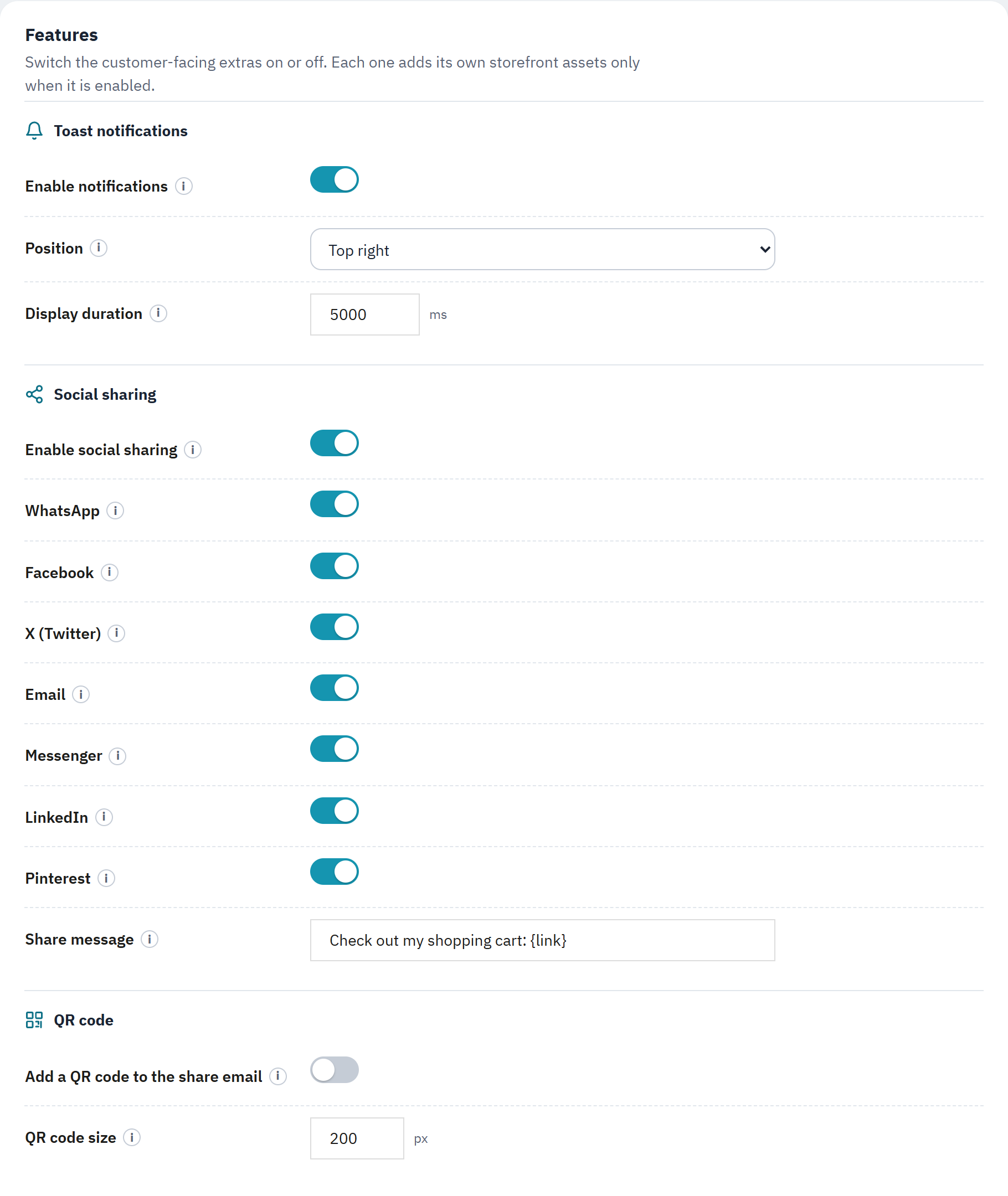
- Enable notifications: the toast shown when a basket is saved or retrieved.
- Enable social sharing: the share buttons after a basket is saved.
- The per-network switches: turn each channel on or off.
- Add a QR code to the share email: a scannable code in the email.
Toast notifications
A toast is a small message that slides in to confirm an action. Its assets load on the cart only when this is on.
| Enable notifications | Show a toast when a shopper saves or retrieves a basket. On by default. |
|---|---|
| Position | Where the toast appears: Top right (default), Top center, Bottom right or Bottom center. |
| Display duration | How long the toast stays, in milliseconds, between 1000 and 15000. The default is 5000 (5 seconds). |
Social sharing
Enable social sharing shows the share buttons after a basket is saved; its assets load only when this is on. Under it, a switch for each channel, WhatsApp, Facebook, X (Twitter), Email, Messenger, LinkedIn and Pinterest, all on by default (The networks). The Share message is the text a shopper shares; use {link} where the basket link should appear. The default is Check out my shopping cart: {link}.
QR code
Add a QR code to the share email adds a scannable code to the email so the shopper can open the basket on another device. It is off by default. QR code size sets the image size in pixels, between 100 and 500; the default is 200. The code is produced inside your shop.
Click Save to keep your changes.