














The Save and share block on the cart
The block on the cart page is where everything starts for the shopper. It holds the two buttons, Save Basket and Retrieve Basket, and opens the save popup.
Where the block appears
In the Classic and Hummingbird themes the block sits in the reassurance area, below the checkout button, where it is easy to notice without getting in the way of the order. You can move it to the left column, into the cart summary, or to a custom position in your theme; the choices are in General › Placement on the cart (Placement on the cart).
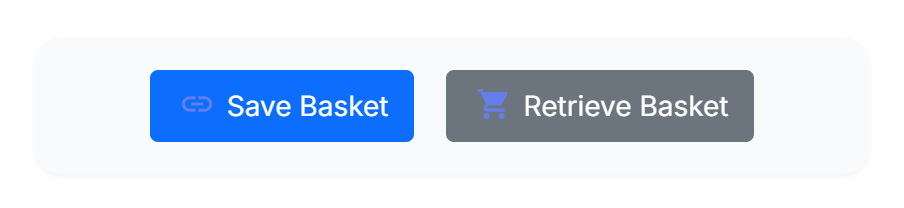
- Save Basket opens the save popup.
- Retrieve Basket opens the retrieve popup, where a shopper enters a code.
The save popup
When the shopper clicks Save Basket, a popup opens with three things:
- a preview of the basket at the top: each product's picture, quantity and line price, and the total, so the shopper sees exactly what they are saving;
- the basket code, a short code they can write down or type back in later;
- an email field and an optional note. Entering an email and clicking Send saves the basket, emails it, and shows the share buttons (Sharing by social network, link and QR code).
The shopper does not have to be logged in to save a basket. If they are logged in, the basket also appears on their My Saved Carts page (The customer's saved baskets).
Make the buttons match your shop
The look of the two buttons, their size and colours, is set under General › Button style, and the colours of the popup header under General › Popup appearance (Button style). The block uses your theme's layout, so it fits in without any theme editing.
Retrieving a saved basket
A saved basket can be brought back in two ways: by opening the link that was shared, or by typing the basket code. In both cases the shopper decides whether to keep their current basket or replace it.
By link: the shared-basket page
When someone opens a shared link, they land on a branded page that shows the saved products, the total and the sender's note, with a button to add the items to their own basket. This is friendlier than silently swapping the basket and jumping to the cart, and it means a link preview or a prefetch never retrieves a basket by accident.
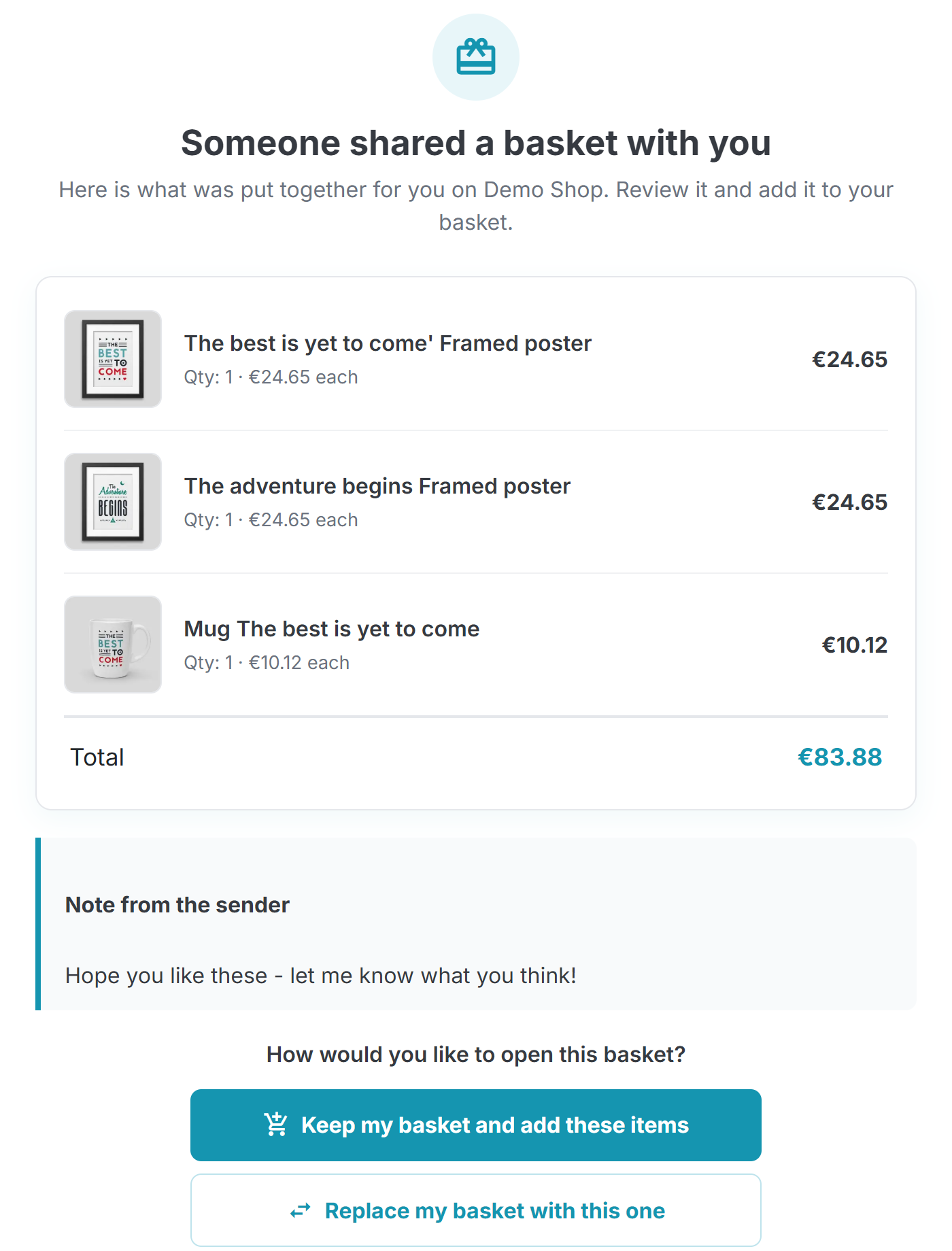
- The saved products, each with its picture, quantity and price.
- The basket total.
- Keep my basket and add these items merges the saved items into the recipient's basket.
- Replace my basket with this one swaps their basket for the saved one.
The two buttons appear when the retrieve mode is Let the shopper choose. With a fixed mode, a single Add to my basket button is shown instead (Keep or replace). The landing page can be turned off under General › Shared-basket page, in which case the link adds the items and goes straight to the cart (Shared-basket page).
By code: the retrieve popup
A shopper who has only the basket code uses the Retrieve Basket button on the cart.
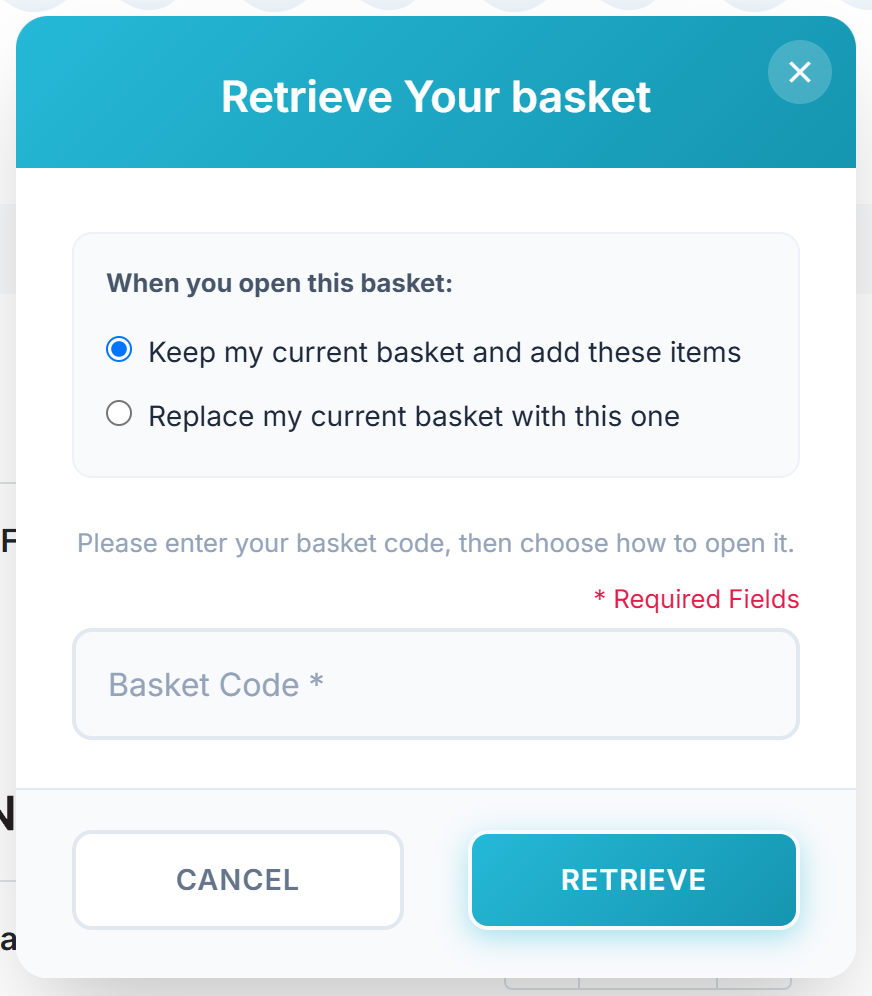
- With the Let the shopper choose mode, the popup asks whether to keep or replace the current basket.
- The basket code field.
- Retrieve brings the saved basket back and opens the cart.
Keep or replace
How a saved basket joins the current one is set under General › Retrieving a basket:
| Let the shopper choose | The popup and the landing page offer both options. This is the default. |
|---|---|
| Add to the current basket | The saved items are always merged into what the shopper already has. |
| Replace the current basket | The saved basket always replaces the current one. |
Sharing by social network, link and QR code
Once a basket is saved, the shopper can pass it on: to a partner who makes the decision, to a friend who wants the same products, or to their own phone. The more a basket is shared, the more chances it has to become an order.
The share buttons
After the shopper enters an email and clicks Send in the save popup, a confirmation appears and the share buttons are shown. The same share menu is on the My Saved Carts page for each saved basket (The customer's saved baskets).
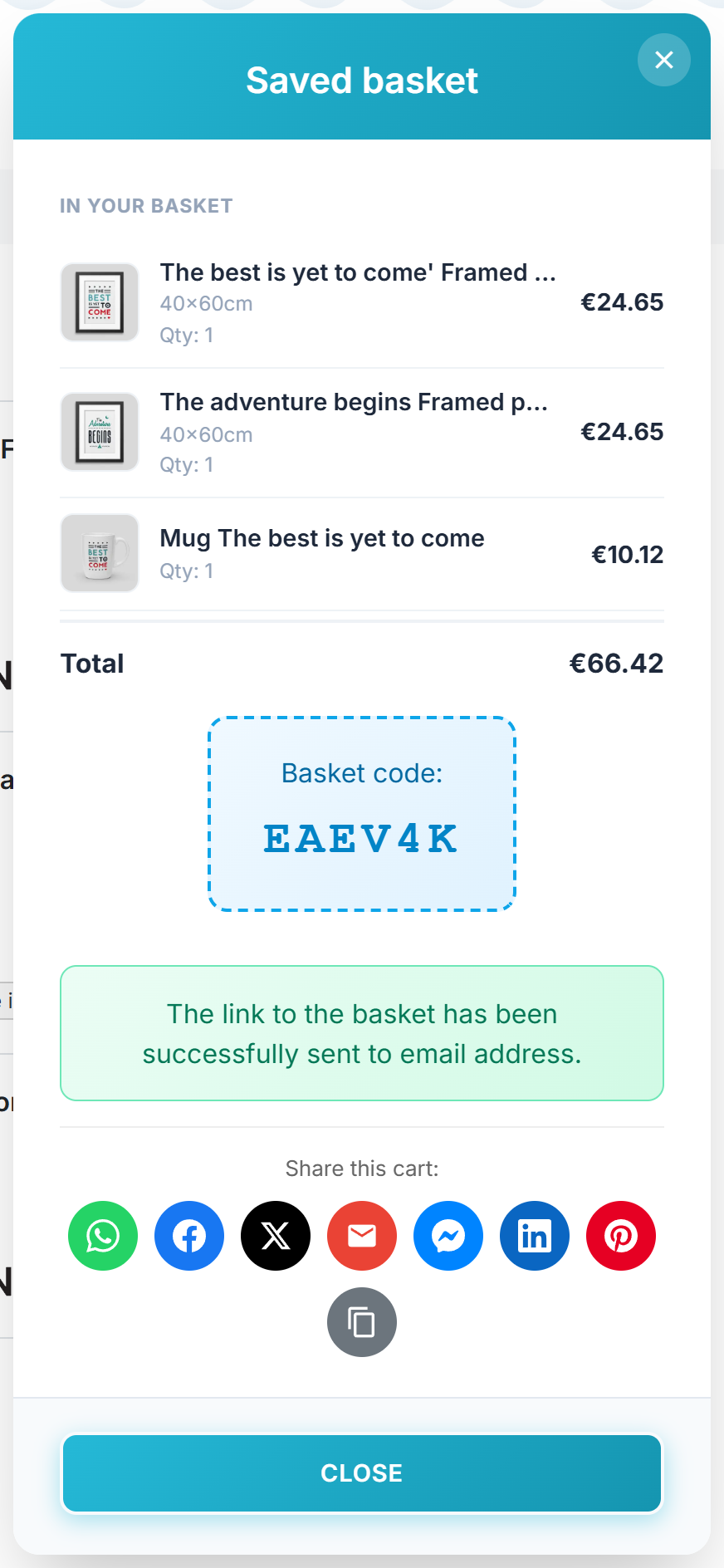
- The confirmation that the basket was emailed.
- The share buttons for the networks you turned on.
- The copy-link button, which copies the basket link to the clipboard.
The networks
Saved Basket offers seven channels, each of which you can turn on or off under Features › Social sharing (Social sharing):
| Opens WhatsApp with the share message and the link ready to send. | |
| Opens the Facebook share window for the link. | |
| X (Twitter) | Opens a new post with the message and the link. |
| Opens the visitor's email program with the subject and the link filled in. | |
| Messenger | Opens the Messenger app with the link. Aimed at phones; on a desktop it needs the Messenger app. |
| Opens the LinkedIn share window for the link. | |
| Opens the Pinterest pin window, which suits shops with strong product images. |
The wording a shopper shares is the Share message, where {link} is replaced by the basket link. The accent colour of the share menu and the copy-link button is the Share accent colour under General › Button style.
The copy-link button
The copy-link button copies the basket link to the clipboard so the shopper can paste it anywhere, for example into a notes app or a chat you do not offer as a button. Anyone who opens that link lands on the shared-basket page (By link: the shared-basket page).
The QR code in the email
You can add a scannable QR code to the share email, so a shopper who saved a basket on a computer can open it on their phone by scanning. The QR code is off by default; turn it on and set its size under Features › QR code (QR code). It is produced inside your shop, with nothing sent to a third party.
The customer's saved baskets
A signed-in customer gets a My Saved Carts page in their account, where they can find every basket they saved, see its status, share it again or delete it.
The account link
On the customer's account page, a My Saved Carts link appears alongside their orders and addresses. When the customer has saved baskets, a small badge shows how many. The link is added automatically; there is nothing to set up.
The list of saved baskets
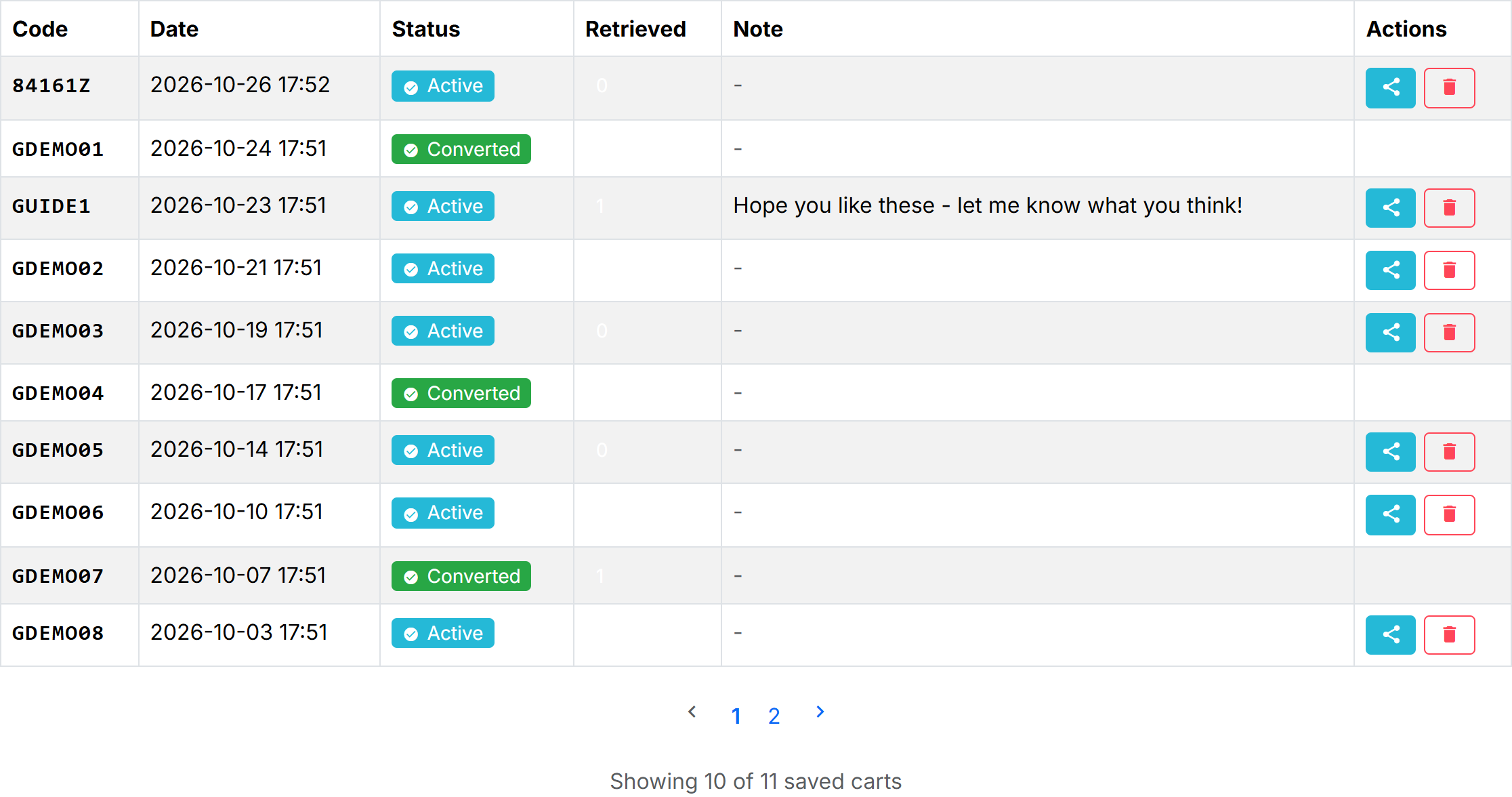
- The columns: the code, the date, the status, how many times it was retrieved, the note and the actions.
- The status badge: Active, Converted (it became an order) or Expired.
- The share button, which opens the same share menu as the save popup.
- The delete button, for a basket the customer no longer wants.
What the customer can do
- Share a basket again with the share button, through any of the channels you turned on (Social sharing).
- Delete a basket they no longer need. A basket that has become an order is kept for reference and cannot be deleted.
- See the status of each basket at a glance: still active, already turned into an order, or expired.